Screenshot Studio · App Store
App Store screenshots that tell your app's story.
Turn your own app screens into a coordinated set for iPhone and iPad. Generate a first draft, fine-tune every slide, add languages, and prepare the formats your listing needs.
Free lets you try the AI and export screenshots with a watermark. Direct publishing and watermark-free exports are on Pro.
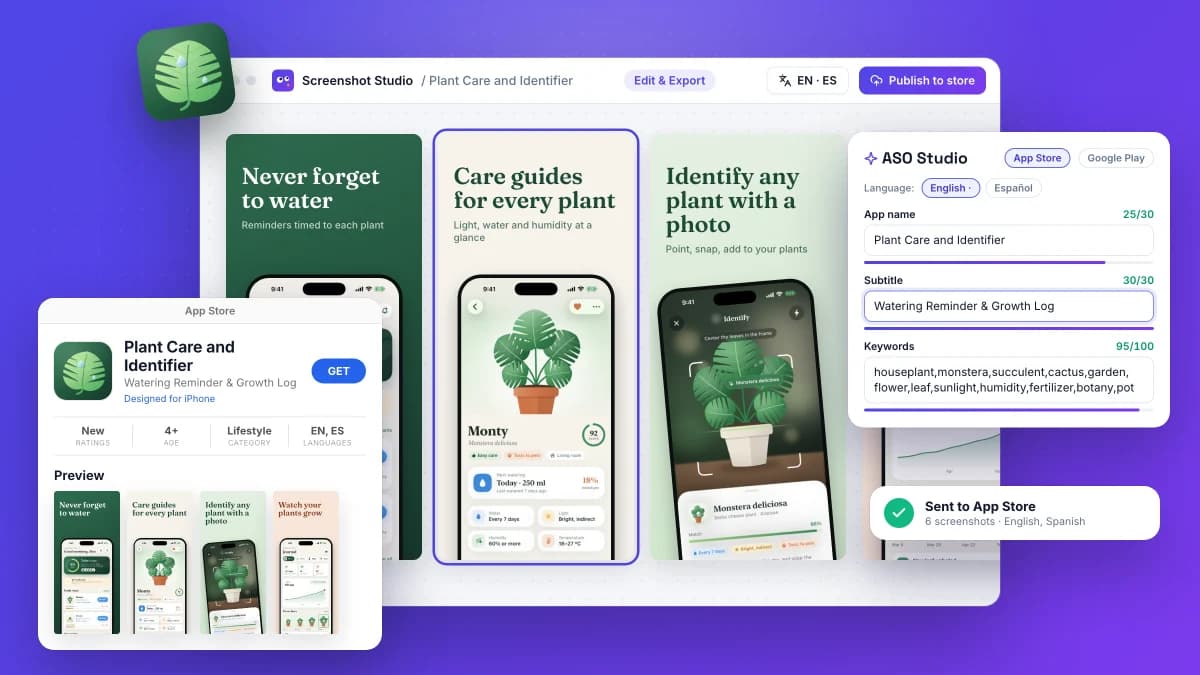
From app screens to a store-ready set
Keep the message, visual style, and localizations together in one editable project.
- 01
Start with your app
Create an app profile manually or from a store link, then add real screens from the app. The profile keeps the story and the ASO copy aligned.
- 02
Choose a visual story
Pick a screenshot template and create captions for the set. Review the copy before generating your slides.
- 03
Edit and prepare every format
Change text, images, and layout on the canvas. Add supported iPhone or iPad sizes and localize the set without starting a separate project.
- 04
Export or send to the store
Download screenshots for manual upload. Pro can send them to the App Store Connect version you are preparing; Apple review and release remain in App Store Connect.
Need a new design or only a new size?
Screenshot Studio designs a new set with captions and editable layouts. If your screenshots are already designed and you only need to change their dimensions, use the free resizer instead.
What happens after you publish?
Sending screenshots to App Store Connect updates the app version you are preparing. It does not make a new version live by itself: you still review the listing and submit it through Apple. You can also export the images and upload them manually.
Build your screenshot set