From app to launch-ready listing

Create your App Store and Google Play listing in one workspace.

Screenshots, ASO text, and localization — created from one app profile. Export them on Free, or publish drafts directly to App Store Connect and Play Console on Pro.

Start on the free plan.

Stop rebuilding your store assets manually.

One launch can mean several screenshot formats and store copy for two stores in multiple languages — usually spread across design files, spreadsheets, and separate tools.

Manually
hero_6.9_v3.png
hero_6.5_v3.png
ipad_13_v2.png
play_phone_v2.png
aso_copy_FINAL.xlsx
de_screens_v2.zip

Re-cut for each format, repeat it for each language, and update it again when the copy changes.

In AppListingLab
One app profile
Who it is for, what it does, how it sounds
  • App Store screenshots
    iPhone 6.9" · iPad 13"
  • Google Play screenshots
    phone, tablet, feature graphic
  • ASO text
    name, subtitle, keywords, description

Use the same app profile when generating each asset, so screenshots and store copy stay aligned.

Build the key parts of your store listing

Create screenshots and store copy from one app profile, keep them consistent across languages, then export or publish when they are ready.

App StorePublishing
Relay
Team chat that stays on topic
GET
Productivity · 4+ · English, German, French, SpanishLocalization
PreviewScreenshots
DescriptionASO text

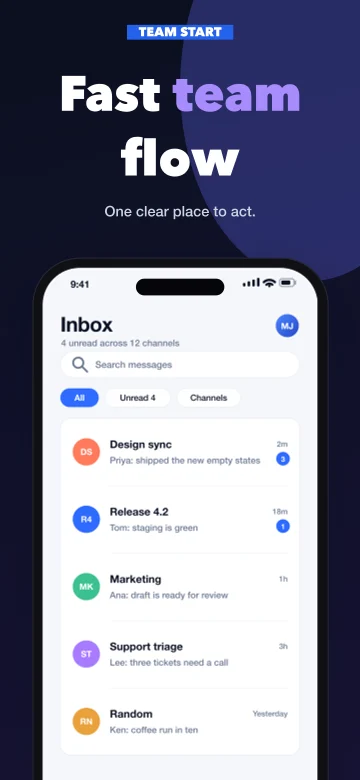
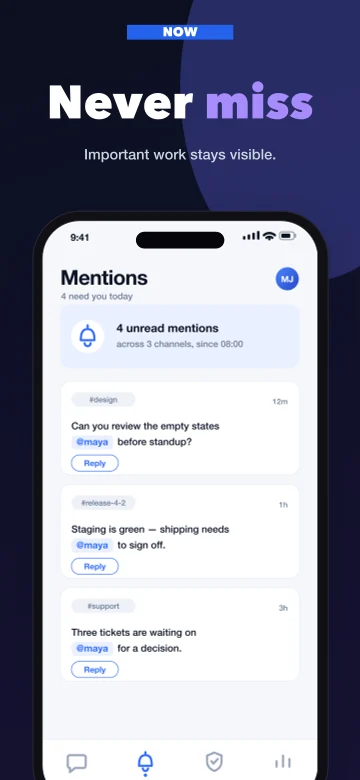
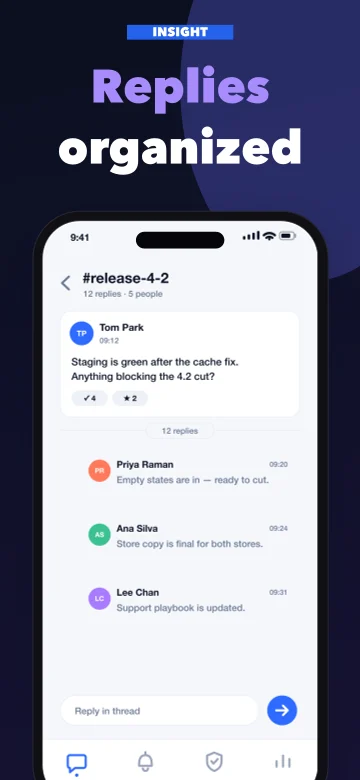
Every conversation in one place, with replies attached to what they answer. Relay keeps the day's decisions where the team can find them tomorrow.

  • Store-ready formats from one design

    Render supported App Store formats and practical Google Play phone and tablet presets from one layout, without rebuilding each version by hand.

  • ASO text that fits

    App name, subtitle, keywords, promotional text and descriptions, always inside each store's character limits.

  • Localization in one workflow

    Localize screenshots and store copy for the languages you choose, then review each result before export or publishing.

  • Export or publish

    Download store-ready files, or publish drafts directly to App Store Connect and Play Console on Pro.

Screenshot Studio

The App Store and Google Play screenshot generator

Turn your real app screens into coordinated App Store and Google Play screenshots: pick a screenshot template, let AI write the captions, fine-tune on the canvas, and export the whole set at the sizes each store asks for.

  • Templates that tell a story

    Use story-based templates with captions drafted from your app profile.

  • Edit on a real canvas

    Drag, resize, and style text, images, and shapes directly on the canvas.

  • Publish drafts on Pro

    Render supported store formats, then upload the set directly to App Store Connect and Play Console as a draft to review.

  • One design, multiple formats

    Adapt one layout to supported App Store formats and practical Google Play phone and tablet presets.

applistinglab.com/app/projects/fittrack/aso
App StoreGoogle Play
App name26/30
FitTrack: Workout Planner
Subtitle24/30
Habits, plans & progress
Keywords45/100
workout,planner,gym,habit,fitness,log,routine

ASO Studio

Create store-ready ASO copy

Everything app store optimization asks for — App Store name, subtitle, promotional text, keywords, and description, plus the Google Play title and descriptions. Built around relevant keyword themes from your app profile and kept within each store's length limits.

  • Screenshots and ASO text tell one consistent story
  • Live character and byte counters on every field
  • Regenerate any field with AI or edit it inline
  • Copy a field — or the whole listing — in one click
  • Full history on every listing — what changed, and one click to restore it

App profile

Define your app once. Keep every asset aligned.

Your audience, positioning, tone, and product details become the shared brief for screenshots and ASO copy.

How it works

1. Start from a link, or from scratch

If your app is live, paste its store link and we pull the name, artwork, screenshots, and category. If it hasn't shipped yet, describe what it does and who it's for — that is enough to start.

2. Generate screenshots and ASO text

Get App Store and Google Play ASO text, plus screenshots that tell the same story.

3. Edit and export

Fine-tune screenshots on the canvas, preview your store page, and export supported formats — or publish drafts directly on Pro.

Turn your app into a listing ready to launch.

Set up your app once, then generate screenshots and ASO text that all say the same thing.

Start building your listing

Frequently asked questions

What sizes do App Store screenshots need to be?

For iPhone, Apple currently requires a 6.9-inch screenshot set. A supported 6.5-inch set can be used when 6.9-inch screenshots are not provided. If your app runs on iPad, add the required iPad screenshots. App Store Connect can scale these assets for smaller displays.

How long can App Store keywords be?

The App Store keyword field holds 100 characters total, including commas. The editor counts characters as you type, and generated drafts aim to avoid repeating terms already covered by the app name or subtitle.

Does Google Play have a keyword field?

No. Google Play has no dedicated keyword field. Use relevant terms naturally in the title and descriptions; AppListingLab drafts those fields within their length limits.

Can I publish directly to the stores?

Yes, on Pro. Connect App Store Connect or Play Console, then publish your store copy and screenshots as drafts for review. On Free, you can download the files for manual upload; screenshot exports include a watermark.

Do my exports have a watermark?

Only screenshots downloaded on the free plan, which carry a small “Made with applistinglab.com” mark at the foot. The free browser tools never add one, and neither do icons or listing text. Every paid plan downloads screenshots unmarked. The mark changes nothing about who owns the files.

Will the screenshots show my real app?

Yes. Your own app screens remain the content. Templates provide the frame, background, and layout, while AI can draft captions from your app profile.