Screenshot workflow
Resize app screenshots without losing the important UI
Compare Fit, Fill and Stretch with a reproducible crop example. Choose the target, preserve important UI and inspect each exported screenshot.
By AppListingLab, Product and engineering · 5 min read
Published · Updated
A shape mismatch cannot disappear
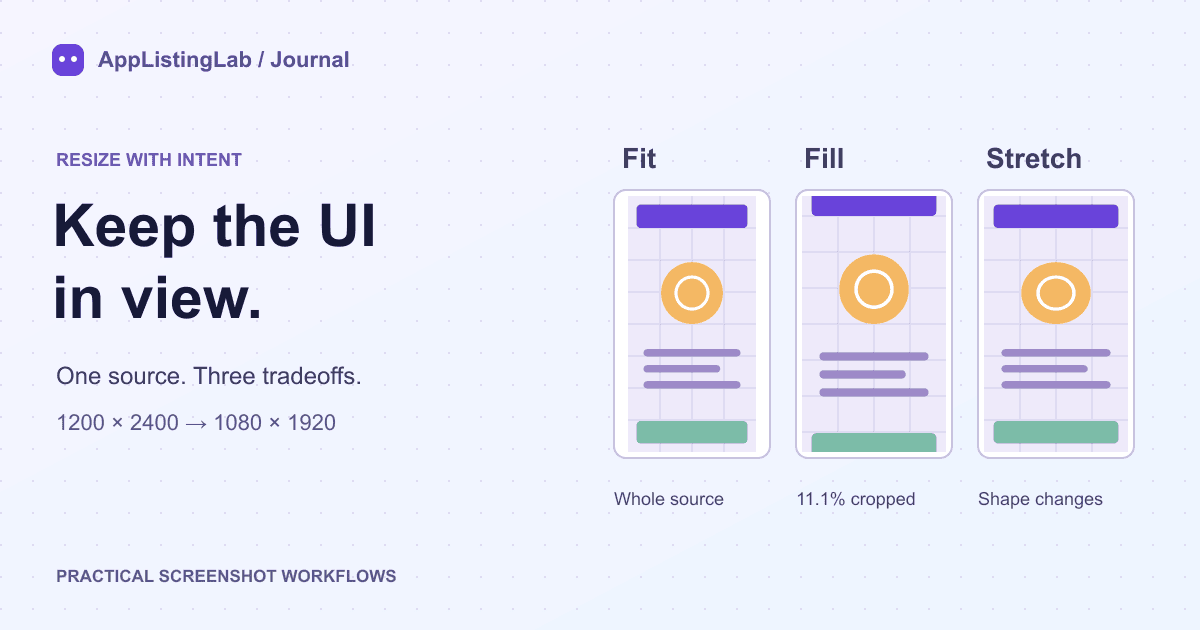
Consider a 1200 × 2400 source and a 1080 × 1920 target. The source is twice as tall as it is wide; the target has a different proportion. A resize must add space, crop pixels or distort the image. None of these choices recreates the interface as it would look on another device.
| Mode | Result for this example | What you give up |
|---|---|---|
| Fit | 960 × 1920 image, with 60 px on each side | Some of the target is background |
| Fill | 1080 × 2160 image cropped to 1080 × 1920 | 240 px of the scaled height; about 11.1% of the image area |
| Stretch | 1080 × 1920, with different scale factors on each axis | Original proportions |
Those values come from the same geometry used by the resizer's preview and export. They describe a resize calculation, not an experiment in store conversion. You can reproduce the example with any image of that size.
Use Fit when the entire screen matters
Fit scales the source uniformly until it fits inside the target. Navigation, status bars and bottom controls remain visible. A shape mismatch leaves background bars. Choose a background that fits the image and check whether the resulting interface is still large enough to read.
Keep padding at zero when the source already matches the desired size. Padding adds space inside the target and makes the image smaller; it is a design choice, not an upload requirement. If the layout becomes too small, use a real capture from the intended device or redesign the composition.
Use Fill only after reviewing the crop
Fill uses one uniform scale factor and covers the entire target. The surplus extends beyond the edges. In the resizer, drag the preview to move the focus point for each source image. A crop that preserves a headline may hide a bottom navigation bar; inspect both.
The focus is stored in source-image coordinates. It follows that source across selected targets, but the amount cropped changes with each target's shape. Review the phone, tablet and landscape previews independently before exporting the batch.
Treat Stretch as an explicit compromise
Stretch fills the target by scaling width and height independently. Circles become ellipses and text can look compressed. It may produce the right pixel dimensions while making the screenshot less faithful to the app. Prefer an accurate capture or a composed layout when proportions matter.
Check the batch as files, not just previews
- Choose the store and device targets before adjusting crops.
- Load sources from one device size where possible. Mixed shapes can produce inconsistent margins and interface scale.
- Compare Fit and Fill on the first image, then inspect each remaining source. Do not assume that one crop suits every screen.
- Set the file order deliberately: the source order becomes the numbered export order.
- Download the ZIP, open a file from every target folder and verify its actual dimensions, image quality and visible UI.
- Choose the final set within the store's limit: ten per Apple device size, eight per Google Play device type.
Resizing handles geometry and file encoding. Screenshot Studio is the continuation when you need captions, a coordinated template or a different composition. Store acceptance and the accuracy of the app experience still require your review.
Sources and verification
Source references checked on 2026-10-22. See the store references for the latest rules; file checks establish file properties, not store acceptance.