Troubleshooting
How to diagnose rejected App Store screenshot uploads
Check the upload destination, actual pixel size and PNG alpha channel, then verify the corrected file before uploading it again.
By AppListingLab, Product and engineering · 6 min read
Published · Updated
1. Separate an upload error from a review decision
Keep the original file and the exact message from App Store Connect. A file rejected during upload needs a different investigation from an app rejected during review. Resizing can fix a pixel-size mismatch; it cannot establish that a screenshot accurately represents your app or complies with review rules.
- Record the platform, device display group, locale and orientation of the destination.
- Inspect the exported file, rather than the source canvas or a preview in your editor.
- Change one property at a time and retain the version that was uploaded. Avoid repeated edits with no record of what changed.
2. Match pixels to the destination
The dimensions in a filename are a label, not evidence of the file's size. Read the image properties. For example, a 1320 × 2868 portrait image belongs to an accepted large Dynamic Island display size; it does not become a Duo inner-display screenshot when renamed. Apple lists separate device groups and accepted alternatives.
| Example destination | Portrait pixels | What to check |
|---|---|---|
| Dynamic Island, large display | 1320 × 2868 | One accepted alternative, not the only iPhone size |
| iPhone Duo outer | 1398 × 2034 | Separate display layout |
| iPhone Duo inner | 2007 × 2853 | Separate display layout |
| iPad 13-inch | 2064 × 2752 | One accepted iPad alternative |
Apple's April 2027 Duo requirement applies to apps using the iOS 27.1 SDK or later. Check the submission's actual requirements and the complete size reference, especially when supporting iPad or several iPhone groups. Enlarging a capture cannot recover missing detail or demonstrate a different device experience.
3. Check the alpha channel, not just visible transparency
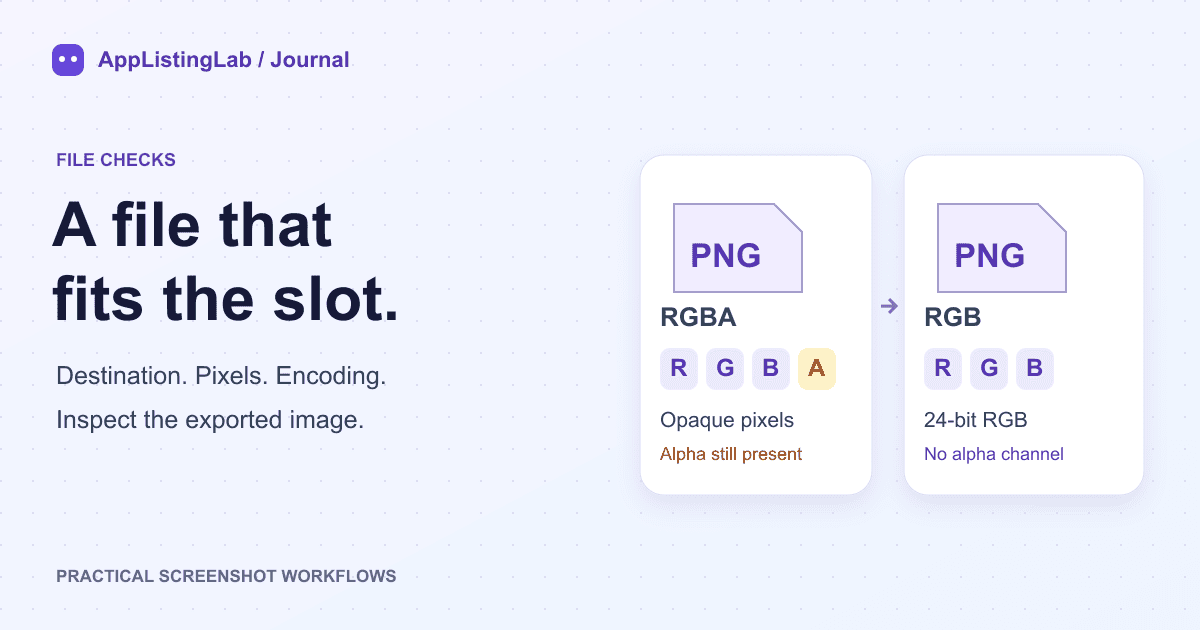
Apple permits JPEG/JPG and PNG screenshots and prohibits alpha channels and transparency. A PNG with every alpha value set to fully opaque still has an alpha channel. Putting a white rectangle behind the picture is therefore not enough to establish that the file uses an RGB encoding.
AppListingLab's Screenshot Resizer flattens transparent source areas onto the selected background and writes PNG as 8-bit RGB with three colour channels. JPG is another option; because its compression is lossy, inspect small labels and sharp interface edges after export.
| File property | Expected for the resizer PNG | Why it matters |
|---|---|---|
| PNG colour type | 2 — truecolour RGB | No alpha channel in the encoded file |
| Bit depth | 8 bits per channel | 24-bit RGB output |
| Transparency chunk | Absent | No separate PNG transparency information |
| Dimensions | The selected target's width and height | Matches the file's intended upload slot |
Our export checks decode the resulting PNG and inspect its header, channels, dimensions and pixels. These checks reproduce a file-encoding correction; they are not a claim that Apple accepted a particular app submission.
4. Make a corrected file and inspect it
- Open Screenshot Resizer and add the original image. Files stay in your browser.
- Select the exact target you need. Start with Fit to preserve the complete screen; use Fill only after checking what the crop removes.
- Choose an opaque background and PNG or JPG. Download the ZIP and extract the target folder.
- Inspect the extracted file's actual dimensions and encoding. Open it at full size to check legibility, cropping and background bars.
- Upload one corrected file to the matching App Store Connect slot. Keep the result and the error message, if any, before changing the rest of the set.
Apple allows up to ten screenshots per device size. Google Play has a different limit: up to eight per supported device type. The resizer can prepare a larger working batch, so choose the final upload set separately.
Sources and verification
Source references checked on 2026-10-22. See the store references for the latest rules; file checks establish file properties, not store acceptance.