Asset workflow
Generate Android image densities from a correctly sized source
Work through a real 400 × 240 raster example, inspect mdpi–xxxhdpi PNGs and download the source and generated ZIP. Learn when to select a 3× or 4× base.
By AppListingLab, Product and engineering · 6 min read
Published · Updated
Separate logical size from pixel dimensions
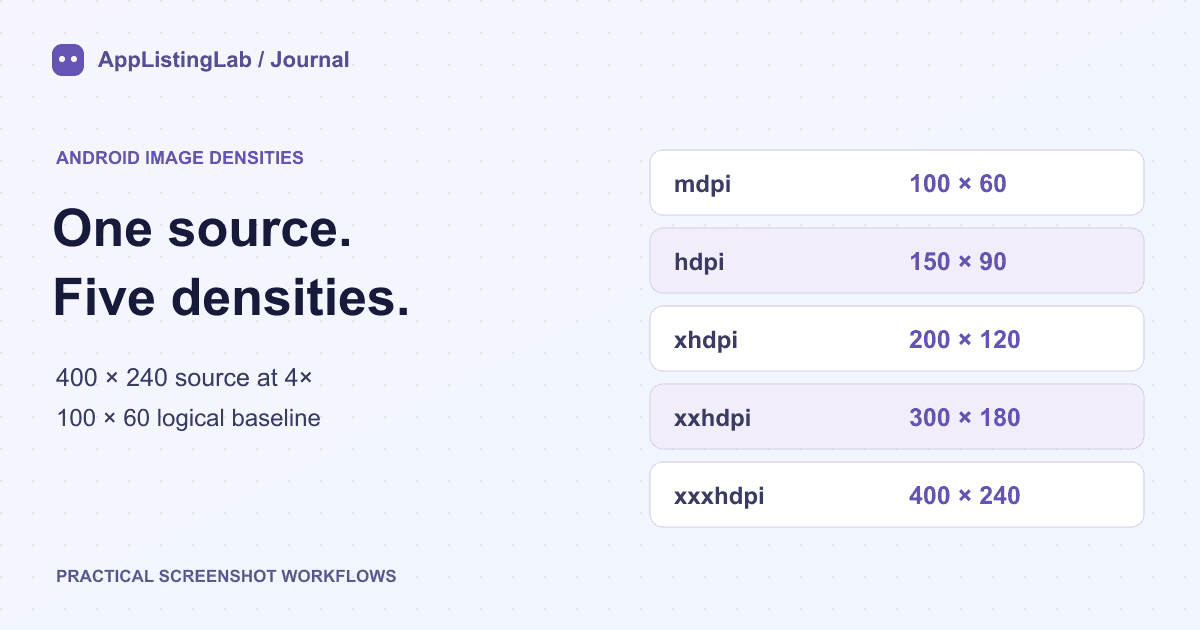
Suppose a raster illustration should occupy 100 × 60 density-independent pixels in an Android layout. A 4× source needs 400 × 240 pixels. A file that is 400 pixels wide does not tell you its intended logical size by itself: the source density and how the app displays it matter.
Android density buckets scale a baseline mdpi size. The usual factors are 1 for mdpi, 1.5 for hdpi, 2 for xhdpi, 3 for xxhdpi and 4 for xxxhdpi. Keep each variant in its matching resource folder. Screen-resolution marketing assets, device screenshots and launcher icons are different tasks.
Inspect the 400 × 240 example
We created an original calibration illustration and ran it through the Image Sets Generator's export function with a 4× base. We opened the resulting ZIP and decoded every PNG to verify the folder, filename and dimensions. This checks the shared export code locally; it is not a claim about a device test or a Play Console upload.
| ZIP folder | Density factor | Decoded output size |
|---|---|---|
| drawable-mdpi | 1× | 100 × 60 |
| drawable-hdpi | 1.5× | 150 × 90 |
| drawable-xhdpi | 2× | 200 × 120 |
| drawable-xxhdpi | 3× | 300 × 180 |
| drawable-xxxhdpi | 4× | 400 × 240 |
Download the calibration source PNG →
Download the inspected Android density ZIP →
The sample is a raster illustration rather than an app screenshot. Use your own source asset in the product. Re-running the example with the same 4× setting should produce the listed dimensions.
Choose 3× or 4× from the source's meaning
Image Sets Generator offers a 3× or 4× base. The base tells it which scale the uploaded pixels represent. The export uses output pixels = source pixels × destination scale ÷ base scale, rounded to a whole pixel. Changing the base changes the logical size of every result.
For a 300 × 180 source intended for the same 100 × 60 logical area, select 3×. That produces mdpi through xxhdpi. The tool skips xxxhdpi because that 4× bucket would exceed the source scale. Selecting 4× merely to get every folder would shrink the assumed baseline to 75 × 45 rather than recovering missing detail.
- Use the original, largest trustworthy raster file, not a screenshot of a preview.
- Select the base scale and Android output. Read the per-file dimension preview before export.
- Keep resource names suitable for Android: lowercase letters, digits and underscores. A filename such as hero_photo.png is clearer than a display label with spaces or punctuation.
- Extract the ZIP and inspect each folder and image. Review thin lines and text at the intended display size.
Place resources in the right project destination
The ZIP groups files under an android folder with drawable-mdpi through drawable-xxxhdpi subfolders. Put the required drawable folders into your module's res resources and confirm their names and usage in the app. The top-level android folder is a packaging convenience, not an Android resource qualifier.
A vector drawable may be more appropriate for a simple shape that should scale cleanly. If you need a launcher icon, adaptive-icon layers or a Google Play store icon, use the corresponding icon workflow and validate its separate requirements. This raster density export does not create an adaptive icon package.
Use App Icon Resizer for the separate icon task →
Finally, run the app at relevant densities and check the visual size and sharpness. Correct dimensions in a ZIP establish file properties; device rendering also depends on your layout and resource usage.
Sources and verification
Source references checked on 2026-10-23. See the store references for the latest rules; file checks establish file properties, not store acceptance.
Continue reading
Resize app screenshots without losing the important UI →
Prepare Google Play screenshots and a matching feature graphic →