Release preparation
Prepare Google Play screenshots and a matching feature graphic
Build a clear Google Play asset checklist: phone screenshots, a separate 1024 × 500 feature graphic, locale folders and file inspection before upload.
By AppListingLab, Product and engineering · 6 min read
Published · Updated
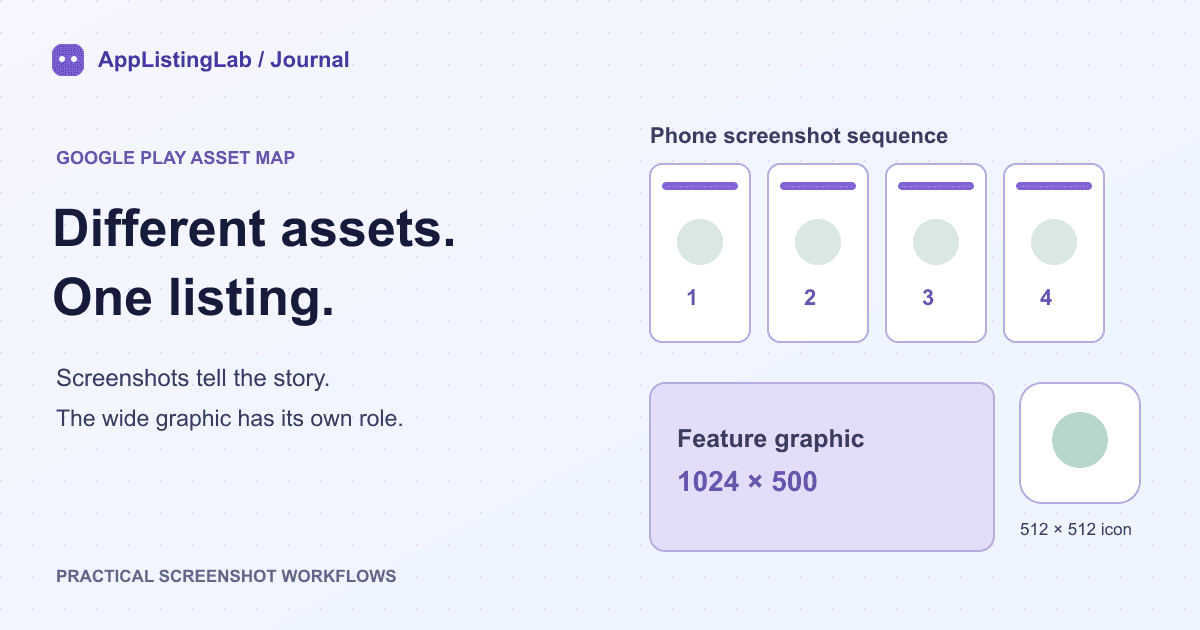
Start with three distinct file roles
A phone screenshot shows the experience people will use. A feature graphic introduces the app in a wide visual format. The store icon identifies the app. A single resized picture usually cannot do all three jobs: its text, crop and visual hierarchy were designed for a different shape.
| Asset | Working example | Purpose |
|---|---|---|
| Phone screenshot | 1080 × 1920 portrait | A practical 9:16 preset for the screenshot sequence |
| Feature graphic | 1024 × 500 | A separate wide composition |
| Google Play store icon | 512 × 512 | A separate store-listing icon, not a launcher density set |
The phone example is a useful working preset. It is not the only accepted screenshot size. Google separates upload requirements from the additional criteria used to recommend promotional placement.
Give each screenshot one job
Write the sequence before choosing decoration. For a food diary, a reasonable editorial plan is: record a meal, review the estimate, see daily progress, and check the fasting timer. Use those messages only when the current Android app actually supports and shows the corresponding flow.
- Capture the current Android build and remove private account information from the source.
- Choose the first screen for the main user task, rather than a splash screen or a settings menu.
- Keep the visible app interface large enough to inspect. A caption should explain the screen, not cover its important controls.
- Check every image at a small display size. If the sequence needs zooming to understand, simplify the copy or composition.
For a working phone set, four screenshots make a useful starting point. Google permits up to eight per supported device type. Preparing ten working files in an editor does not mean all ten belong in the final phone upload set. Tablet and other device groups have their own needs.
Recompose the feature graphic
A 1080 × 1920 screenshot and a 1024 × 500 feature graphic have very different proportions. Stretching the first into the second distorts the interface. Filling the wide canvas with a portrait image can remove most of the original composition.
Keep the same visual vocabulary: background colour, type style and one product message. Then design the wide asset separately. Move important elements away from edges and consider how the graphic may be cropped or overlaid in its destination. Review Google's content guidance rather than treating pixel size as the whole requirement.
In AppListingLab, use the App profile to keep the product facts consistent across screenshots, listing text and the feature graphic. The feature-graphic workflow is separate from Screenshot Resizer. The resizer changes the geometry of an existing file; it does not invent a new wide composition.
Map every file to a locale and destination
| Example package path | What to verify |
|---|---|
| en-US/phone/01-record-a-meal.png | 1080 × 1920; first message; current Android interface |
| en-US/phone/02-review-estimate.png | Same target, consistent type and screen scale |
| en-US/feature-graphic.png | 1024 × 500; its own wide layout |
| store-icon.png | 512 × 512; store icon requirements |
These names illustrate a handoff convention, not a mandatory Google folder format. A clear package prevents the feature graphic from being uploaded to a screenshot slot and keeps translated text attached to the correct locale.
- Open the exported files and inspect actual pixel dimensions and image format.
- Check order, crop, legibility, spelling and whether every claim matches the app.
- Verify the target locale and device type in Play Console before selecting files.
- If using publishing automation, review the selected images and destination separately. Exported files are not proof of an accepted or published listing.
Sources and verification
Source references checked on 2026-10-23. See the store references for the latest rules; file checks establish file properties, not store acceptance.
Continue reading
Write a Google Play app description from verified product facts →