Screenshot layouts
Plan iPhone Duo screenshots for the outer and inner displays
Use the accepted iPhone Duo dimensions, review each display's real app layout and keep the two screenshot sets aligned without stretching the interface.
By AppListingLab, Product and engineering · 6 min read
Published · Updated
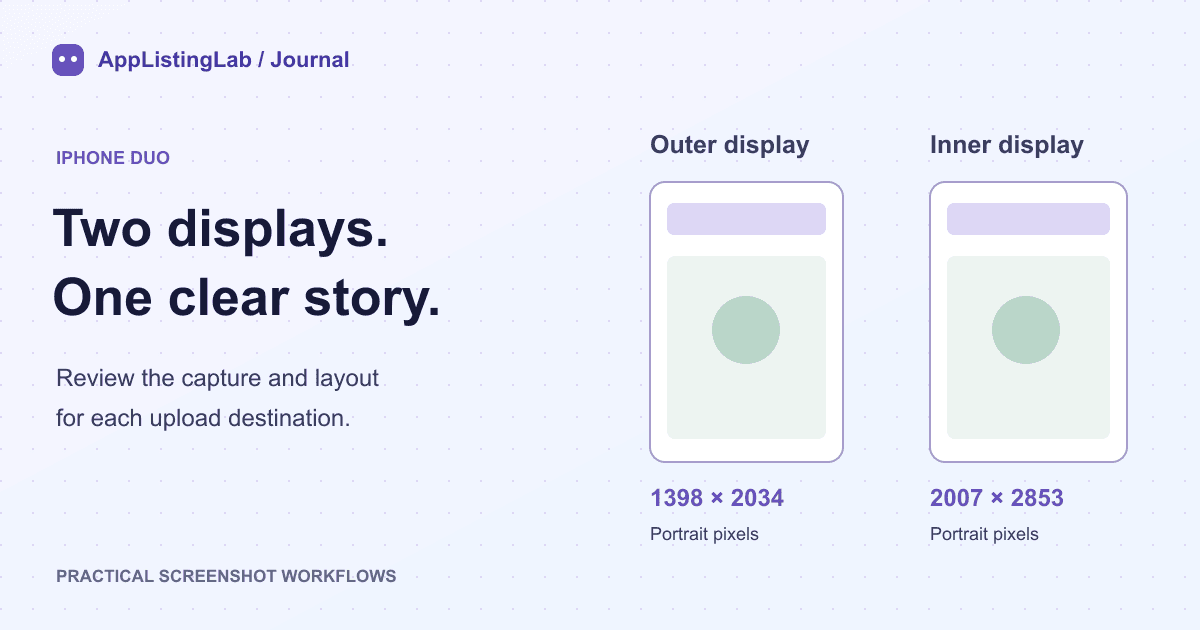
Choose the display and orientation first
The term iPhone Duo screenshots covers two upload destinations. The outer display uses 1398 × 2034 pixels in portrait; the inner display uses 2007 × 2853. Landscape uses the corresponding reversed pair. Keep these targets distinct from the standard iPhone screenshot groups.
Apple's April 2027 requirement is qualified: it applies to apps using the iOS 27.1 SDK or later. Confirm the SDK and current App Store Connect requirements for the release you are preparing. A calendar date alone does not establish which files your submission needs.
Capture the actual layout for each display
Start from the app, not from a filename. A screenshot of the outer display can show a different content arrangement from the inner display. Capture the supported experience on the appropriate device or simulator configuration and check navigation, sheets, keyboard states and bottom controls.
Resizing an outer-display file creates a file with different dimensions. It does not demonstrate how the app behaves on the inner display. If the app reflows, changes hierarchy or shows more content, use a capture of that actual layout. Do not add features or panels solely to make a marketing image look more spacious.
- Record the app build, screen, locale, display and orientation for each source.
- Use comparable app state so the two sets tell a consistent story.
- Keep important content clear of framing and caption areas.
- Remove personal data from the source and verify that any replacement still represents the product truthfully.
Compare the same catalogue template in both formats
These are existing AppListingLab Calm Callouts catalogue previews. They are useful for examining the relationship between a caption and a framed screen in two target formats. They are lower-resolution previews, not the files to upload to App Store Connect and not an owned-app case study.
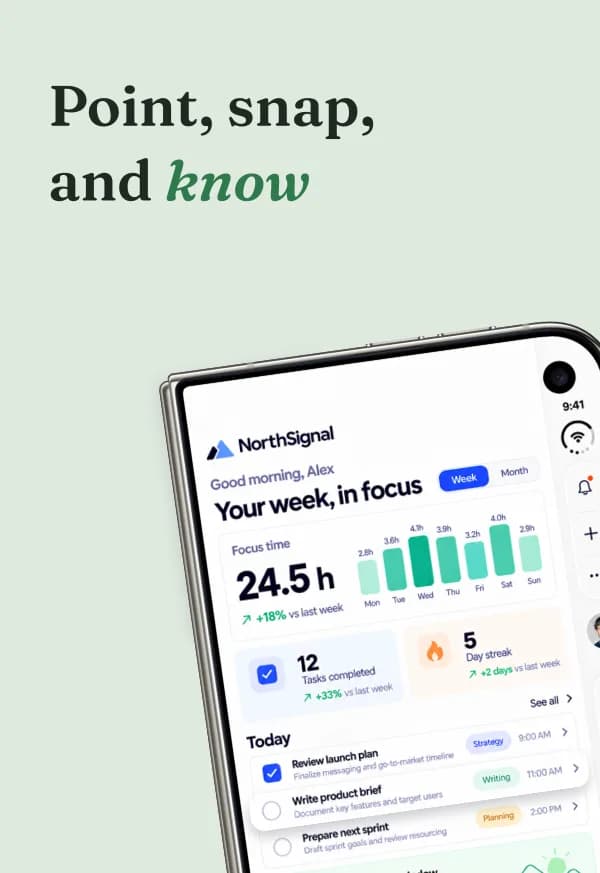
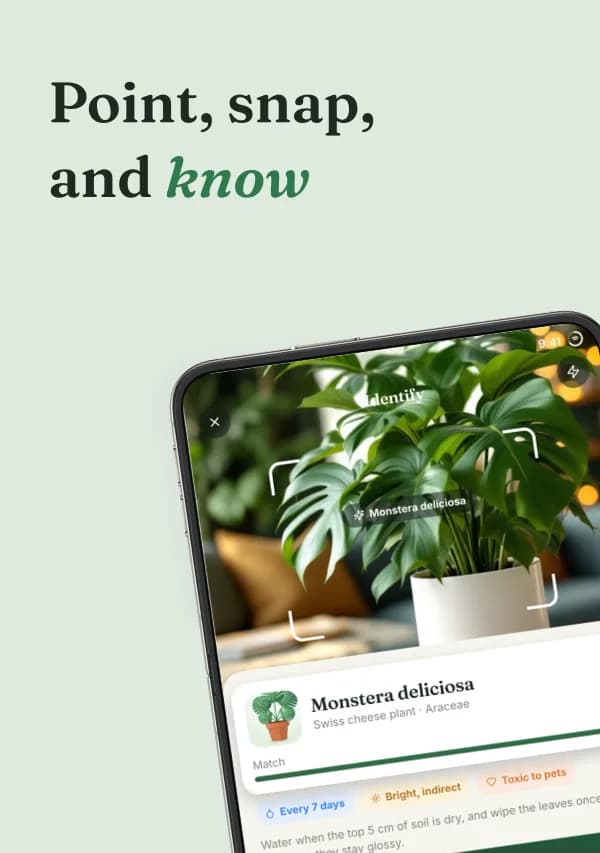
Keep the headline's meaning consistent while checking line breaks, screen scale and spacing independently. A title that fits in one format may collide with a frame or obscure the app in another. Review each screenshot rather than assuming the first layout proves the whole set.
Review the two exports and the delivery route
- Export the intended display and orientation, then open the file at full size.
- Read the actual pixel dimensions and check the PNG/JPEG encoding.
- Check the source capture and visible caption against the current app and locale.
- Keep outer and inner files in separate, clearly named folders. Apple permits up to ten screenshots per device size.
- Check that each file is assigned to the correct outer or inner display and locale in App Store Connect.
Product Page Header artwork and App Preview video are separate asset types. They do not replace a Duo screenshot set. Follow the appropriate guide when your release also uses those assets.
Sources and verification
Source references checked on 2026-10-23. See the store references for the latest rules; file checks establish file properties, not store acceptance.